AI Integration (MCP)
Ask your AI assistant about a survey the way you would ask a colleague. Connect Claude, ChatGPT or another MCP client to SkyGIS once, and it can list your projects, read layers and the results of stored analyses, filter vector features and answer with a link that opens the viewer at the right place. It signs in with your SkyGIS account and sees only the projects you already have access to.
- Clients
- Claude, ChatGPT, Claude Code, Cursor, VS Code
- Access
- Your SkyGIS sign-in, your projects only
- Included in
- Every plan
What you can ask
The assistant works from the data and results already in your projects, so its answers match what you see in SkyGIS.
- Projects
Projects and layers
Which projects you have, what each one contains, and the coordinate system, extent and attributes of a layer.
- Results
Stored analyses
Read the results of deviation, volume, clearance and other analyses you have run, and summarise or chart them.
- Vectors
Filter and total features
Filter vector objects by attribute and sum lengths, areas or counts per zone, such as signs per road section or pipe length per district.
- Alignments
Chainage along a route
Locate features on an alignment and report them by station, so a list of defects reads in the order of the route.
- Export
GeoJSON and CSV
Export the features behind an answer as GeoJSON or CSV, ready for a spreadsheet, a GIS or a map.
- Viewer
A link back to the place
An answer can end with a link that opens the SkyGIS viewer at the location it is talking about.
Connecting an AI client
Open AI clients
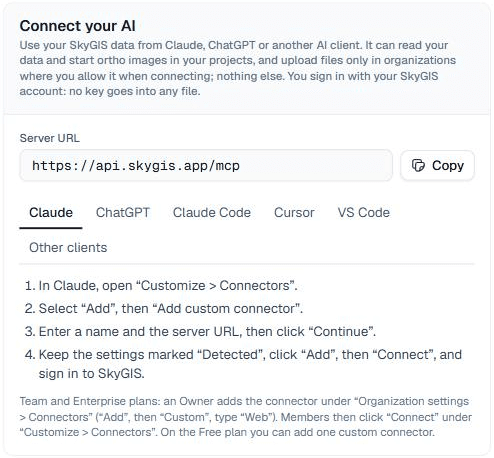
In SkyGIS, go to Account → AI clients and choose your client: Claude, ChatGPT, Claude Code, Cursor or VS Code.
Add the server
Copy the server URL into the client and follow the steps shown for it. No API key goes into any file.
Sign in and choose organisations
Sign in with your SkyGIS account and connect one or several organisations. Then start asking.
What the assistant can and can't do
It can
- Read projects, layers and stored analysis results you have access to
- Filter, total and export vector features
- Report features by chainage along an alignment
- Start an ortho render or upload files, only when you ask and only where an editor allowed it
It can't
- See projects you don't have access to
- Change or delete existing data
- Write in an organisation where nobody allowed it
- Replace the engineer's judgement on a result
Questions
Can I use SkyGIS with Claude, ChatGPT or other AI tools?
Yes, on every plan. Connect Claude, ChatGPT, Claude Code, Cursor, VS Code or another MCP client under Account → AI clients. The assistant reads only the projects you have access to.
Can the AI change my data?
No. It can't change or delete existing data. It can start an ortho render or upload files only when you ask, and only in an organisation where an editor has allowed it.
Does the AI see other people's projects?
No. It signs in with your SkyGIS account and sees the same projects you see, in the organisations you chose to connect.
Do I need an API key?
No. You sign in with your SkyGIS account when you connect the client, and no key is stored in a file.
Ask your AI about your own survey
Start on the free plan, upload a project and connect Claude or ChatGPT under Account → AI clients.